
Make the welcome your own.
Give your assistant a name, choose how it greets visitors and put your most useful answers within reach.
Welcome to the shop.
Looking for a hand choosing a bag?
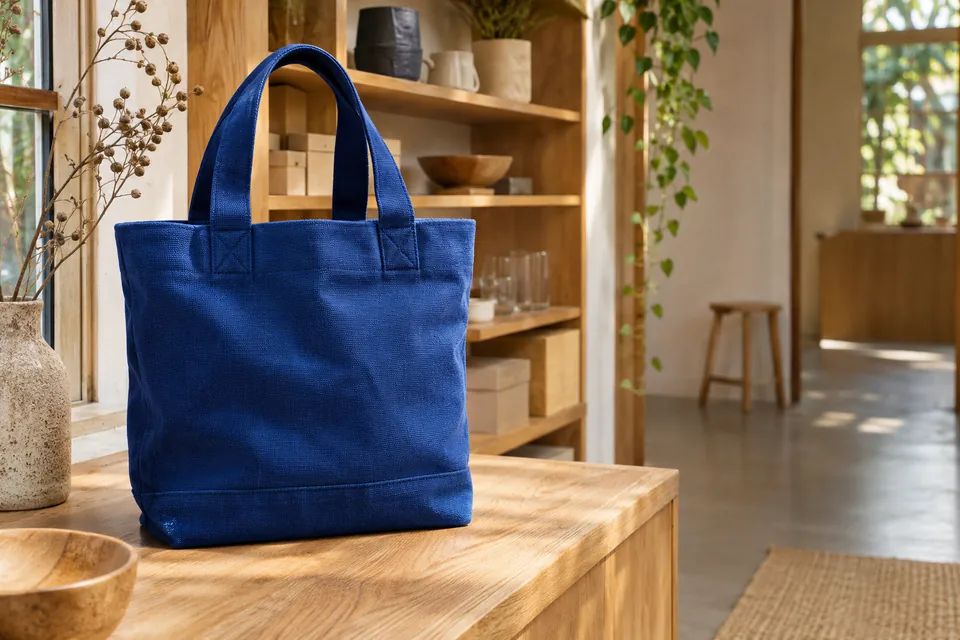 From our collectionThe Day Tote
The Day Tote fits a laptop up to 14 inches. It has an open main compartment, so bring a sleeve if you’d like extra padding.
Ask the shop.
Try a sample question.
Shop questions
When will it arrive?
We dispatch on weekdays. Standard delivery takes 3–5 business days after dispatch. Your checkout shows the estimate for your address.
Can I return a bag?
Yes. In this shop you can return an unused bag within 30 days. Find the returns instructions in your order confirmation.
Inside the widget studio.
See how the assistant looks on the example shop Folio Goods while adjusting the widget in the editor.
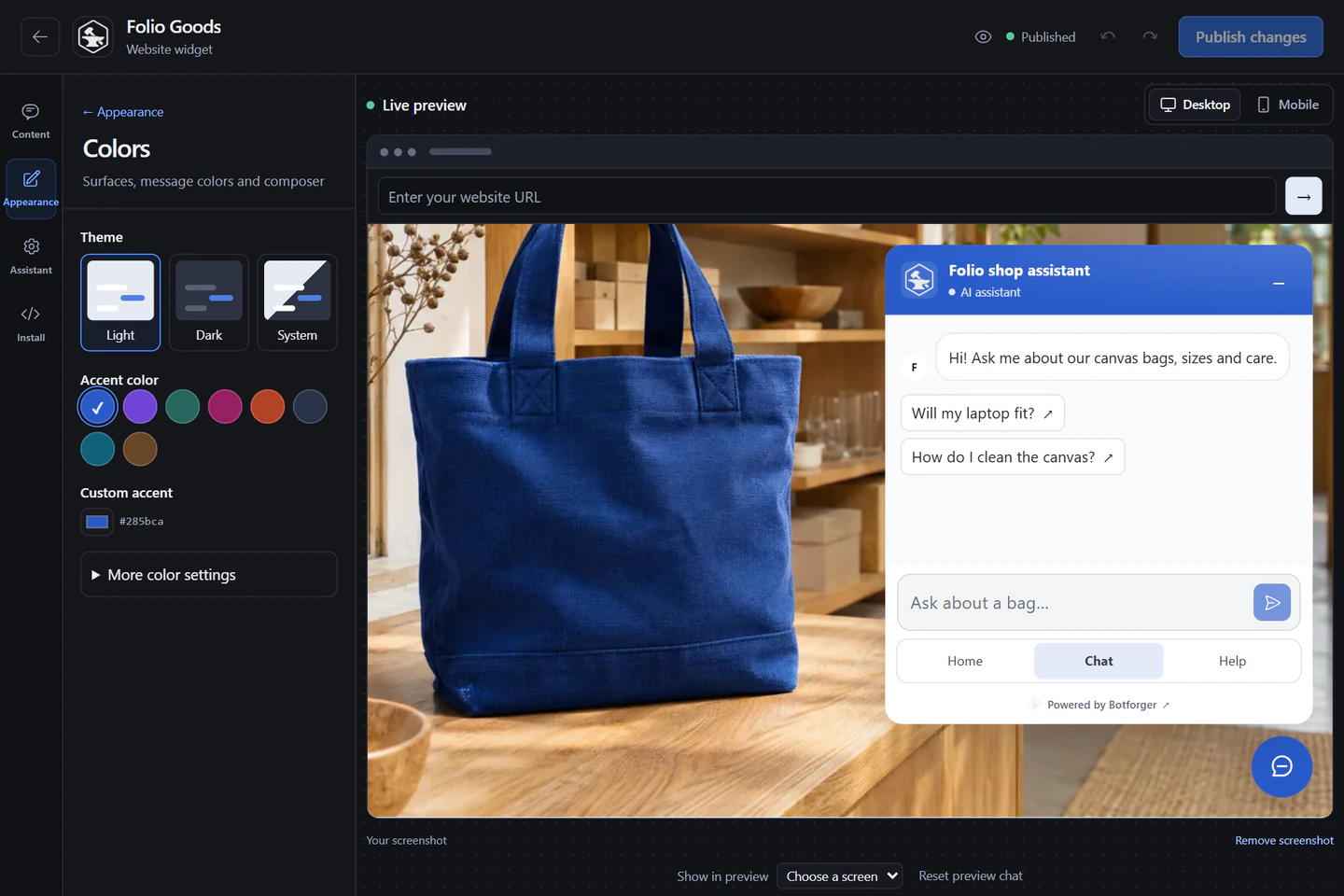
- Preview it against your own site
- Enter a public page address for a still desktop or mobile screenshot, or upload a PNG, JPEG or WebP. The preview helps you judge colors and placement against your actual layout.
- Decide what stands out
- Start from Studio blue, Midnight or Forest, then adjust typography, message bubbles, logo and launcher. Place the button on the left or right, round or with a short label.
- Test and publish
- The design canvas uses sample replies. Use Test chat with your provider to check the instructions, then publish the changes to update the visitor widget.
What belongs on the first screen of a website assistant?
Think about the first ten seconds of a visit. Someone who wants opening hours can tap an expandable FAQ. Someone deciding between two products may need a follow-up question. Give each of those people an obvious starting point by choosing what appears on the home screen.
Fixed FAQ cards display the text you write. AI chat uses the instructions and short knowledge context you supply. If your opening hours matter in both places, keep both entries in step when the schedule changes. Preview the English or Dutch controls alongside your own greeting.
Choose the right widget layout for your visitorsWhat goes inside your widget?
Start with the question someone would ask at your front desk. Build the welcome screen around that moment.
Answers in your own words
Set the tone in your instructions. Add a short knowledge note for details the assistant should use and up to four starter questions to get a conversation going.
A useful home screen
Pin FAQs that open with a tap, link to your most visited pages or curate a small product carousel. Add email, WhatsApp or Messenger as a contact option.
A private conversation archive
Read the questions people actually asked. Filter conversations, export them to Excel and use recurring gaps to decide what to add to your instructions next.
Match the question to a widget feature
A few well-chosen entries keep the home screen readable. Use the format that best serves each visitor need.
| What the visitor needs | What to put in the studio | What to maintain |
|---|---|---|
| A definite answer about hours | An FAQ card with the hours written out. | Holiday exceptions and the same fact in the AI instructions. |
| Help picking a product | A curated product card with a description and shop link. | The link, image and price you entered manually. |
| A way to reach a person | A contact card with the channel your business checks. | The destination address and your published response hours. |
| A question in their own words | Suggested starter questions and AI chat. | The brief, based on questions in your private archive. |
Read a few real conversations after launch. A repeated question is a good candidate for a clearer instruction or a new FAQ card.
Frequently asked questions
Can I see how my changes look on a phone?
Yes. The studio has desktop and mobile previews so you can check your welcome text, colors, launcher and layout before embedding.
Can I invite a visitor to ask a question?
Yes. Set an optional invitation above the floating chat button. Choose when it appears and write a short prompt that fits the page, like “Need help choosing a size?”
Can I use Dutch labels in the widget?
Choose Dutch or English for the widget controls. Write the greeting, suggested questions and FAQ cards in the language of your visitors.
Does the product carousel update from my stock system?
You choose the products and enter their names, images, descriptions, prices and links. Keep those entries in step with your catalog.
Do I need to reinstall the widget after changing the launcher?
The hosted script picks up your published changes the next time someone loads the page. An older copied launcher can keep its original appearance. Replace that snippet with the hosted script to manage it from the studio. Existing inline iframe links still work.